
How Can You Make Your Website Easier for Everyone to Use?
How Can You Make Your Website Easier for Everyone to Use?
How Can You Make Your Website Easier for Everyone to Use?
IL Webdesign
|
October 18, 2026
|
13 min read
WEBSITE DESIGN
Table of Contents
- 1. Why Making Your Website Easier to Use Matters
- 2. Website Accessibility: What Does It Actually Mean?
- 3. Start With How People Actually Use Your Website
- 4. Make Website Navigation Clear and Predictable
- 5. Create Text and Visual Content That Is Easier to Understand
- 6. Accessible Website Design Includes Easier Forms
- 7. Make Buttons and Interactive Elements Easier to Use
- 8. Support Keyboard Navigation and Assistive Technology
- 9. Common Web Accessibility Mistakes to Avoid
- 10. Frequently Asked Questions
- 11. Key Takeaways
- 12. Make Your Website Easier to Use
- 13. Disclaimer
- 14. References
Website accessibility can sound like a highly technical subject, but much of it comes down to a simple question: can different people comfortably understand, navigate, and interact with your site?
A visitor may be using a keyboard instead of a mouse, enlarging text to make it easier to read, using a screen reader, or viewing your site on a small screen. Other visitors may simply be in a hurry and need clear directions.
Good accessibility decisions can make the experience easier for many of them. It also helps to think beyond individual pages and consider how thoughtful web design choices can improve usability across your entire site.
Here is what you need to know about making your website easier to understand and use.
1. Why Making Your Website Easier to Use Matters
When you build a website, it is easy to think about how the site looks on your own screen. Your visitors do not necessarily experience it the same way.
Someone may have difficulty reading low-contrast text. Another person may navigate without a mouse. Someone using a screen reader depends on the way your content and page structure communicate information. Even visitors without disabilities can struggle with confusing menus, unclear buttons, tiny text, or forms that do not explain what information they require.
That is why usability should not be treated as a finishing touch.
Think about a simple contact form. You know exactly what the form is supposed to do because you helped create the website. A first-time visitor does not have that context. If the labels are unclear or an error message does not explain what went wrong, completing a simple task can become unnecessarily frustrating.
A useful website should not make people work harder than necessary to understand what to do next.
2. Website Accessibility: What Does It Actually Mean?
At its core, website accessibility means designing and developing online content so people with different abilities can use it effectively.
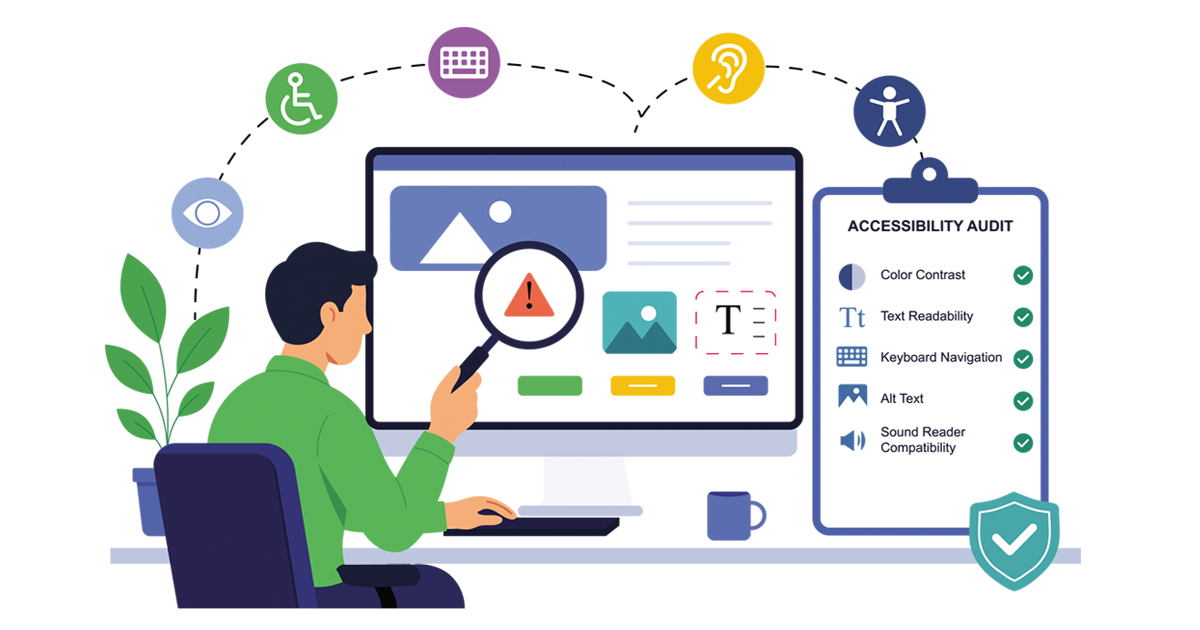
That includes more than adding alternative text to images. Accessibility can affect your page structure, navigation, forms, colors, videos, links, buttons, headings, and the way your website responds to different methods of interaction.
The W3C Web Accessibility Initiative explains that web accessibility involves designing and developing websites, tools, and technologies so people with disabilities can perceive, understand, navigate, interact with, and contribute to the web.
That definition is useful because it shifts the focus away from individual technical fixes.
You are not simply checking whether an image has alt text. You are asking whether someone can successfully use the page.
For example, a visitor should be able to understand where they are, recognize important controls, move through the content logically, and complete important tasks without encountering unnecessary barriers.
Accessibility works best when it is considered as part of the overall experience rather than as a separate feature added later.
3. Start With How People Actually Use Your Website
One of the easiest mistakes to make is assuming everyone interacts with your website the way you do.
You might use a desktop computer, a large monitor, and a mouse. Someone else might use a phone with the text enlarged. Another visitor might move through links and controls using only a keyboard.
Start by thinking about the tasks people actually need to complete.
If you have an informational site, visitors may need to find a specific article, move between related pages, or locate an important resource. A service-oriented website may need to make it easy for someone to understand an offering and determine what the next step involves.
Try performing those tasks yourself without relying on familiarity with the site.
Can you tell what each button does before selecting it? Can you identify where you are in the navigation? Are headings meaningful when you scan them quickly? Does the page still make sense if you enlarge the text?
This kind of review can uncover problems that are easy to miss when you already know how the site works.
Design for the visitor who is seeing your website for the first time, not only for the person who built it.
4. Make Website Navigation Clear and Predictable
Website navigation should help people answer two basic questions: where am I, and where can I go next?
A complicated menu can make those questions surprisingly difficult.
Clear navigation starts with familiar language. Menu labels should tell people what they will find rather than forcing them to interpret clever wording. The organization should also remain reasonably consistent as visitors move from one page to another.
Imagine that the main navigation appears at the top of your homepage but changes completely when someone opens an interior page. Even if both menus technically work, the change can create unnecessary confusion.
The same principle applies to links within your content.
Descriptive link text gives visitors context about where a link leads. Generic phrases can be harder to interpret, especially when someone is scanning a page or using assistive technology.
You should also consider visual orientation. Headings, breadcrumbs when appropriate, consistent menus, and recognizable page structures can all make a large website easier to explore.
The goal is not to make every page identical. It is to create enough consistency that visitors do not have to relearn your interface every time they move somewhere new.
5. Create Text and Visual Content That Is Easier to Understand
Readable content is about more than choosing an attractive font.
Think about the relationship between text size, spacing, contrast, paragraph length, headings, and the background behind the content. Each element affects how easily someone can process what they see.
Color is another important consideration. If the difference between two options is communicated only through color, some visitors may miss that distinction.
Images also need attention when they communicate meaningful information. Alternative text can provide a text-based description when an image cannot be seen or interpreted visually. The right description depends on why the image is there.
A decorative image does not need to be described as though it contains essential information. A chart that communicates an important result requires more thought.
The Web Content Accessibility Guidelines organize accessibility guidance around four broad principles: content should be perceivable, operable, understandable, and robust.
You do not have to memorize every guideline before improving a page. Those principles can simply help you ask better questions about whether your content works for different visitors.
6. Accessible Website Design Includes Easier Forms
Forms are often where small usability problems become obvious.
A visitor may understand your page perfectly and still become stuck when it is time to enter information.
An accessible website design approach makes each field understandable. A person should be able to determine what information is required, where it belongs, and what needs to be corrected if something goes wrong.
Placeholder text alone can create problems when it disappears as soon as someone starts typing. Persistent labels give visitors a clearer reference point.
Error messages should also explain the actual problem.
“Invalid input” tells someone very little.
“Enter your email address in the format name@example.com” gives the person useful information about what needs to change.
Keep the amount of requested information reasonable too. Every unnecessary field adds another decision or action before the person can finish.
If forms play an important role on your site, reviewing how small form problems can create unnecessary friction for visitors can help you think about the form as part of the broader page experience.
A form should feel like a straightforward conversation, not a test the visitor has to figure out.
7. Make Buttons and Interactive Elements Easier to Use
Buttons are small elements with an important job.
A visitor should be able to recognize that an element is interactive and understand what is likely to happen when they use it.
Compare a button labeled “Submit” with one that clearly describes the action being completed. The second approach can give the visitor more context before making a decision.
Consistency matters as well. If clickable elements look completely different from page to page, visitors have to spend more time determining what they can interact with.
Spacing deserves attention, especially on smaller screens. Interactive elements placed too close together can be difficult to select accurately.
You can also review whether important actions are visually distinguishable without relying on confusing effects or excessive animation.
When you are evaluating these elements, it can help to consider how clearer calls to action guide visitors toward the next step without making the page feel crowded or overly aggressive.
The purpose of a button is simple. Make the available action clear and make the control practical to use.
8. Support Keyboard Navigation and Assistive Technology
Not everyone navigates with a mouse or touchscreen.
Some visitors rely on a keyboard to move between links, buttons, form controls, and other interactive elements. That makes keyboard navigation an important part of website usability.
A basic test can tell you a surprising amount about your site.
Start at the top of a page and use the Tab key to move through interactive elements. Pay attention to the order. Can you tell which element currently has focus? Can you reach important controls? Can you operate menus and forms without switching back to a mouse?
A visible focus indicator is especially useful because it shows keyboard users where they are on the page.
Screen readers introduce another consideration. They interpret the structure and information provided by the page rather than simply looking at the visual presentation.
Proper headings, meaningful labels, alternative text where appropriate, descriptive links, and correctly structured controls can give assistive technology more useful information.
You do not need to assume how every assistive technology behaves. Instead, build pages with clear structure and test important interactions through multiple methods.
9. Common Web Accessibility Mistakes to Avoid
Many web accessibility problems come from ordinary design decisions rather than one dramatic technical failure.
A website may look polished while still creating unnecessary barriers.
Some common issues worth checking include:
- Low color contrast: Important text or controls blend into the background.
- Missing or unhelpful alternative text: Meaningful images cannot be understood through a text alternative.
- Unclear form labels: Visitors cannot easily determine what information belongs in a field.
- Keyboard problems: Important controls cannot be reached or operated without a mouse.
- Vague link text: Links do not explain where they lead.
- Poor heading structure: Visual headings do not create a logical content hierarchy.
- Unclear error messages: A form reports a problem without explaining how to correct it.
- Overly complicated navigation: Visitors have to work too hard to find basic information.
Do not approach this as a checklist where fixing one item automatically makes the entire site accessible.
A better approach is to review complete user journeys. Choose an important task and follow it from beginning to end.
For example, try finding a page, understanding its content, completing its primary action, and recovering from an intentional form error. That gives you a more realistic view of the experience.
Frequently Asked Questions
Start with the pages people use most often. Review headings, text readability, color contrast, images, links, forms, buttons, and keyboard navigation.
You do not need to solve every issue at once. Fixing obvious barriers on high-priority pages gives you a practical starting point, after which you can work through the rest of the site systematically.
Not necessarily. Some improvements may involve relatively focused changes, such as clearer labels, better heading structure, more descriptive links, improved contrast, or keyboard-friendly controls.
Other websites may require broader development changes. The scope depends on how the site was originally designed, coded, and maintained.
No. Automated testing can help identify certain technical issues, but it cannot fully judge how understandable or usable an experience is for every visitor.
Manual review is still valuable. Testing keyboard navigation, reading content in context, reviewing form behavior, and checking complete user journeys can reveal issues automated scans may not fully explain.
Text and controls need enough visual distinction from their backgrounds to remain readable and recognizable.
Contrast can be particularly important for people with low vision or color-vision differences, but clear visual separation can also help people using a screen outdoors, viewing a low-quality display, or dealing with glare.
Yes. A redesign is a useful opportunity to think about accessibility from the beginning rather than trying to correct every issue after layouts and components are finalized.
Planning can include navigation structure, heading hierarchy, form behavior, keyboard interaction, readable content, contrast, images, and interactive controls. Building those considerations into the process can make accessibility easier to manage as the website grows.
Key Takeaways
Making a website easier to use is not about one plugin, one test, or one design adjustment. It comes from paying attention to how different people experience your content and complete important tasks.
Keep these principles in mind:
- Design around real visitor tasks rather than assuming everyone interacts with the site the same way.
- Keep navigation, headings, links, forms, and interactive controls clear and predictable.
- Consider readability, contrast, alternative text, keyboard interaction, and assistive technology.
- Test complete user journeys instead of relying only on individual technical checks.
- Treat accessibility as an ongoing part of design and maintenance rather than a one-time project.
Small improvements can remove unnecessary friction, but the strongest approach is to consider usability throughout the entire website.
Make Your Website Easier to Use
A website becomes easier to use when its content, navigation, forms, buttons, and underlying structure work together. You do not need to make every change at once. Start with the pages and tasks that matter most to your visitors, identify the biggest barriers, and work through improvements methodically.
Accessibility should also be considered alongside responsive layouts, performance, navigation, content structure, and the other elements that shape the overall user experience.
Have questions about improving your site’s accessibility and usability? Professional website development services can help you review the broader website experience and determine which areas may deserve attention.
Disclaimer
This article is intended for general educational and informational purposes only. Accessibility needs can vary depending on a website’s content, platform, functionality, audience, and technical implementation.
Accessibility standards and supporting guidance can also change over time. Before making significant accessibility or development decisions, review current authoritative guidance and evaluate your website’s specific circumstances.
This article does not provide legal advice and should not be interpreted as a guarantee that following individual practices will satisfy every accessibility standard, requirement, or legal obligation.