
Table of Contents
- Why Search Bar Design Matters for NYC Small Businesses
- Make the Search Bar Visible and Easy to Find
- Use Clear Placeholder Text That Guides Users
- Add Auto-Suggestions and Autocomplete
- Design for Mobile Users First
- Handle Zero Results With Care
- Include Search Filters and Sorting
- Track Search Analytics to Improve UX
- Common Search Bar Design Mistakes to Avoid
- Key Takeaways
For NYC small businesses, every second a visitor spends looking for information on your website is a second closer to losing them to a competitor. Strong search bar design is one of the most overlooked but high-impact elements on a business website. When a Manhattan customer lands on your site looking for a specific product, service, or piece of information, the search bar becomes their fastest path to conversion. A well-designed search bar can dramatically reduce bounce rates, increase pages per session, and ultimately drive more inquiries to your contact form. In this guide, we’ll walk through seven proven search bar design best practices specifically tailored to the needs of NYC small businesses serving busy Manhattan, Brooklyn, and Queens customers.
Why Search Bar Design Matters for NYC Small Businesses
NYC consumers expect speed and efficiency in everything they do, and your website is no exception. According to research from the Nielsen Norman Group, users who use search are typically more goal-oriented and convert at higher rates than those who browse. For a NYC small business, that means visitors who find your search bar quickly are far more likely to fill out a contact form, request a quote, or pick up the phone.
Poor search bar design has real costs. Visitors who can’t find what they need within a few seconds often leave the site entirely. They might assume your business doesn’t offer what they want, even if the information is there. That’s lost revenue, wasted ad spend, and damage to your local reputation. For service businesses competing in Manhattan’s saturated market, every visitor counts.
The good news is that great search bar design isn’t expensive or technically complex. It’s a matter of understanding user behavior, applying proven design principles, and testing the experience on real devices. Let’s get into the seven practices that matter most.
1. Make the Search Bar Visible and Easy to Find
The first rule of search bar design is that users must be able to find it without thinking. On a NYC small business website, the search bar belongs in a predictable location, usually the top right of the header or near the main navigation. When users land on your site, their eyes will scan for it instinctively. If they can’t locate it within a couple of seconds, they’ll either guess your menu structure or hit the back button.
Use an Open Input Field, Not Just an Icon
One of the most common design mistakes is hiding the search bar behind a magnifying glass icon that users must click to expand. While this saves header space, it adds a click and breaks the user’s flow. Research has consistently shown that an open input field gets used far more often than a collapsed icon. For NYC businesses with content-heavy websites, an always-visible search field is the better choice.
Size and Contrast Matter
The search bar should be large enough to type into comfortably and have enough contrast with the surrounding background to stand out. Aim for at least 27 characters of visible space inside the input field. This length comfortably accommodates most search queries and signals to users that long, descriptive searches are welcome.
2. Use Clear Placeholder Text That Guides Users
Placeholder text inside your search bar isn’t just decoration. It’s a chance to teach users what they can search for and reduce confusion. A generic “Search” placeholder is a missed opportunity. Instead, give users a hint that nudges them toward the kinds of queries your site can answer.
For a NYC plumbing company, a placeholder like “Search services, locations, or FAQs” gives visitors confidence that the search will work for their use case. For an e-commerce store, “Search 1,200+ products” signals scale and invites exploration. Tailor the placeholder text to your business model and the real questions your customers ask.
Keep Placeholder Text Short
While guidance is useful, placeholder text shouldn’t be so long that it gets truncated on mobile screens. Stick to five or six words maximum, and make sure the text remains legible on all device widths. Once a user clicks into the field and starts typing, the placeholder disappears, so the goal is to set expectations quickly, not to provide instructions.
3. Add Auto-Suggestions and Autocomplete
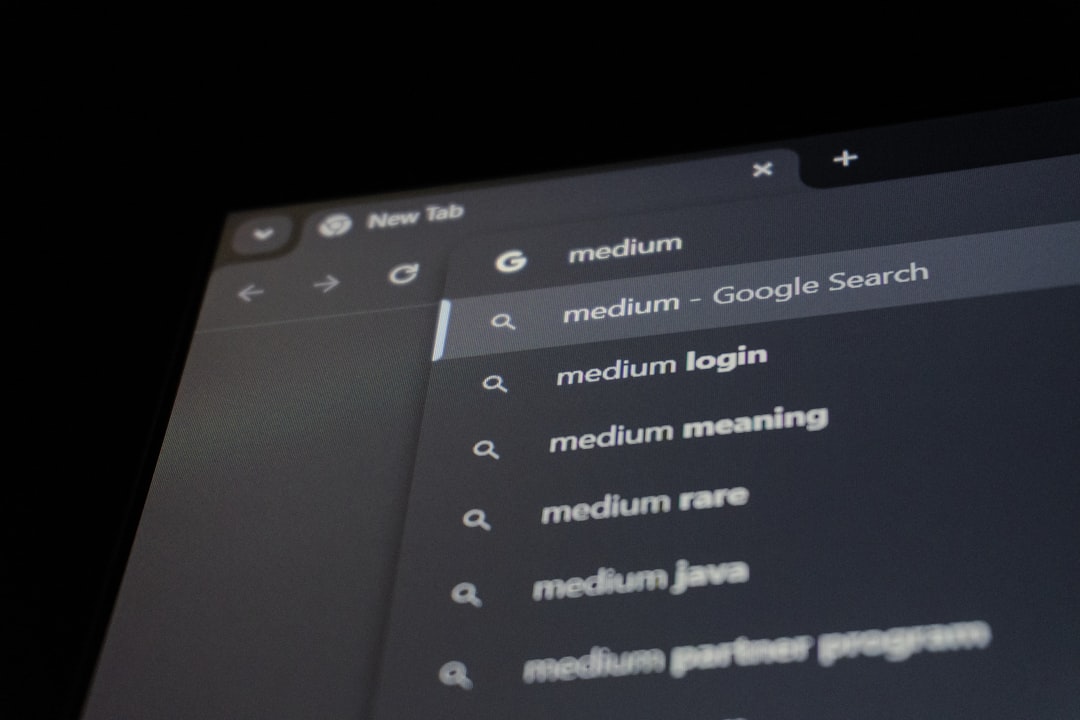
Autocomplete is one of the single most impactful upgrades you can make to your search bar design. As users type, suggestions appear in a dropdown beneath the input field, allowing them to jump directly to a result without finishing the query. This dramatically speeds up navigation and reduces typos, especially on mobile devices where typing is slower and less accurate.
For NYC small businesses, autocomplete should pull from your most common search queries, your service pages, your product names, and your blog content. If you have a strong internal linking strategy, autocomplete becomes even more valuable because users can navigate deep into your site in a single interaction.
Highlight Matched Terms
When suggestions appear, bold the characters the user has typed so they can scan results quickly. This is a small detail with a big impact on perceived usability. It tells the user, “yes, the system understands what you’re typing,” and builds trust in the tool.
Limit Suggestions to 5–8 Items
Too many suggestions overwhelm users and slow decision-making. Five to eight suggestions is the sweet spot, with the most popular or relevant results at the top. If your site has a lot of content, consider grouping suggestions by category, such as “Services,” “Blog Posts,” and “FAQs.”
4. Design for Mobile Users First
The majority of NYC small business website visits now happen on smartphones. A search bar that works beautifully on a desktop monitor can be nearly unusable on a 375-pixel iPhone screen. Mobile-first search bar design is non-negotiable in 2026, and it requires careful thought about screen real estate, touch targets, and keyboard behavior.
Use a Search Icon That Expands on Tap
On mobile, header space is precious, so collapsing the search bar to a magnifying glass icon is more acceptable than on desktop. When tapped, the icon should expand the input to fill the available width, giving users plenty of room to type. The mobile virtual keyboard should appear automatically so users don’t have to tap a second time.
Set the Right Keyboard Type
Use the HTML attribute type="search" on your input field. This triggers the search-specific keyboard on most mobile browsers, which includes a dedicated “Go” or “Search” button. The keyboard should never default to email or URL mode for general searches. Pairing this with proper autofill attributes ensures the best possible experience on every device.
Make Touch Targets Big Enough
The search button itself should be at least 44 pixels by 44 pixels, which is the minimum recommended touch target size. Don’t bury the button against the edge of the screen or place it too close to other tappable elements. Frustrated mobile users will abandon a search before they’ll fight with a cramped UI.
5. Handle Zero Results With Care
Even the best search systems return zero results sometimes. How your site handles this moment is a major factor in whether the user stays or leaves. A bare “No results found” page is one of the most common reasons NYC small business websites lose potential customers at the moment of greatest intent.
Instead, treat zero results as an opportunity. Suggest related queries, popular pages, or top services. Include a prominent link to your contact page or phone number, because a user who searched and didn’t find what they wanted is exactly the person who would benefit from speaking with a real human. Even a simple “Try contacting us directly” message paired with a phone link can recover what would otherwise be a lost visitor.
Suggest Spelling Corrections
If the system can detect a likely typo, offer a “Did you mean…?” suggestion. This catches a huge percentage of zero-result searches that are actually just misspellings. The fix is technically simple to implement using fuzzy matching libraries available for most platforms.
6. Include Search Filters and Sorting
For content-heavy websites, search results without filtering options can be overwhelming. NYC small businesses with multiple service areas, product categories, or blog topics should add filters to the results page so users can narrow down quickly. Common filters include category, date, location, price range, and content type.
Sort options are equally important. Allow users to sort by relevance, date, popularity, or price. Default to the option most likely to satisfy the largest share of users. For most small business websites, that’s relevance, but for blog or news content, it’s often date.
Make Filters Persistent on Mobile
On desktop, filters typically live in a left sidebar. On mobile, they often collapse into a dropdown or modal. Whichever pattern you choose, make sure the filter button stays visible and easy to access as the user scrolls. Hiding filters behind multiple taps will lead most users to abandon refinement entirely.
7. Track Search Analytics to Improve UX
One of the most underused tools in search bar design is the search analytics report. If you’re not tracking what users type into your search bar, you’re missing some of the most actionable insights about what your visitors actually want. Site search queries are pure intent data, and they often reveal content gaps, naming confusion, or missed product opportunities.
Set up site search tracking in Google Analytics by enabling the Site Search feature. Once enabled, you can see which queries are most common, how many of them return zero results, and what percentage of search users go on to convert. Review this data monthly and use it to inform your content strategy, fix naming inconsistencies, and add new pages where demand clearly exists.
For a NYC small business serving Manhattan, queries that include neighborhood names (“Midtown,” “Williamsburg,” “Long Island City”) are gold. They tell you exactly where your customers are coming from and which local pages or service variations you should be building next. Pair search analytics with your Google Business Profile insights for a complete picture.
Common Search Bar Design Mistakes to Avoid
Even teams that have read every best practice still trip over the same issues. Watch out for these common pitfalls in your search bar design implementation.
Hiding the Search Bar in the Footer
Some templates place the search bar only in the footer. By the time users scroll there, most have already given up. The header is the right place for primary search functionality on a NYC small business website.
Forcing Users to Press a Submit Button
Many users expect to press Enter to submit a search, especially on desktop. If your search bar only works when users click a separate submit button, you’ll lose visitors who don’t see or use it. Always support keyboard submission by default.
Returning Slow Results
Page speed matters everywhere, and the search results page is no exception. If results take more than a couple of seconds to appear, users will assume the system is broken and leave. Optimize your search infrastructure and consider lazy-loading results to keep the interaction snappy.
Key Takeaways
Effective search bar design is one of the highest-leverage upgrades a NYC small business website can make. Place the search bar prominently in the header, use clear placeholder text that guides users, and add autocomplete suggestions to speed up navigation. Design mobile-first with proper keyboard types and large touch targets, and treat zero-result pages as opportunities to recover lost visitors. Add filters and sorting on results pages for content-heavy sites, and track search analytics monthly to uncover hidden customer demand. Avoid common mistakes like hiding the bar in the footer or requiring a click to submit. When done right, your search bar becomes a quiet but powerful conversion engine for your Manhattan, Brooklyn, or Queens-based business.
Ready to Build a Website That Converts?
At IL WebDesign, we help NYC small businesses build websites with thoughtful UX choices that turn visitors into customers. From search bar design to checkout flow, every detail matters. If you’re ready to upgrade your site for the way Manhattan, Brooklyn, and Queens customers actually shop, let’s talk.
References
- Nielsen Norman Group — Pros and cons of the magnifying glass icon in search design
- Nielsen Norman Group — How users read on the web and scan for relevant information
- web.dev — Best practices for form autofill and accessibility
- Google Analytics Help — How to set up Site Search reporting
- Google Search Central — Sitelinks search box documentation
Irwin
Founder of IL WebDesign, a NYC-based web design agency specializing in high-performance websites for small businesses. With years of experience in web development, SEO, and digital strategy, Irwin helps local businesses establish a powerful online presence that drives real results.